Does Usb C to Usb Work Both Ways
Yes, USB C to USB works both ways for charging and data transfer, but only when both devices support it. The USB Type-C connector is reversible, meaning you can plug it in either way. However, not every USB C cable works the same, and compatibility depends on the cable type, device ports, and protocol support.
You have probably plugged in a USB cable the wrong way at least once in your life. You flip it, flip it again, and finally it works. That frustration is exactly why USB Type-C was designed to be reversible. But does USB C to USB actually work both ways? The short answer is yes, but there are some important details you need to know.
Understanding how USB C connectors work can save you time, money, and a lot of confusion. Whether you are charging your phone, transferring files to a laptop, or connecting external storage, the bidirectional nature of USB C makes it one of the most versatile connectors today. Let us break it all down in simple terms.
Key Takeaways
- USB C is reversible: You can insert it either way, unlike older USB-A connectors.
- Data transfer works both ways: USB C supports bidirectional data flow between devices.
- Not all USB C cables are equal: Different cables support different speeds, power levels, and protocols.
- Charging works both ways: USB C can charge a laptop from a phone charger or vice versa.
- Adapters matter: Using the right adapter ensures proper functionality between USB C and USB-A devices.
- Check your device specs: Always verify what your port and cable support before expecting full performance.
📑 Table of Contents
- What Is USB Type-C?
- Does USB C to USB Work Both Ways for Data Transfer?
- Does USB C to USB Work Both Ways for Charging?
- Common Myths About USB C Reversibility
- How to Choose the Right USB C Cable
- Quick Tips for Getting the Most from USB C
- Common Mistakes People Make with USB C
- How USB C Compares to Other USB Types
- Conclusion
What Is USB Type-C?
USB Type-C, often called USB C, is a small, oval-shaped connector that has become the standard for modern devices. You will find it on laptops, smartphones, tablets, and even some desktop computers. Unlike the older rectangular USB-A connector, USB C is reversible. This means there is no wrong way to plug it in.
The connector is compact and supports a wide range of functions. It handles data transfer, power delivery, and even video output through a single cable. This versatility is why so many devices have moved to USB C as their primary port.
Why Reversibility Matters
Before USB C, users struggled with older connectors. You had to look at the plug orientation carefully. The USB-A port only worked one way, and it was easy to force it in wrong. USB C solved this problem completely. You can plug it in upside down, right side up, or any orientation. It simply works.
This might seem like a small design change, but it has made a huge difference in everyday use. No more flipping cables three times before they connect. No more worrying about damaging the port by forcing the plug in the wrong direction.
Does USB C to USB Work Both Ways for Data Transfer?
The data transfer capability of USB C is bidirectional. This means data can flow in both directions between connected devices. You can send files from your laptop to an external drive, or from a phone to a computer, using the same cable and port. The connection does not have a fixed “input” or “output” direction.
However, the speed of this transfer depends on several factors. The USB standard supported by your cable and device matters a lot. A basic USB 2.0 cable will be much slower than a USB 3.1 or USB 4 cable. Always check what your cable and port specifications support before expecting fast transfers.
USB C to USB-A Data Transfer
Many people ask whether a USB C to USB-A cable works for data transfer. The answer is yes, it does. You can connect a USB C device to an older USB-A port using the right cable. But here is the catch. The transfer speed will be limited by the slower of the two ports. If your USB C port supports USB 3.1 speeds but your USB-A port only supports USB 2.0, your transfer will run at USB 2.0 speed.
Using a quality adapter can help bridge the gap between different port types. A good NVMe SSD to USB adapter makes it easy to connect modern drives to older ports without losing performance. Always choose adapters that match the data protocol your devices support.
USB C to USB-C Data Transfer
When both devices have USB C ports, the data transfer is even smoother. Both ends of the cable are the same, so there is no adapter needed. You get the full speed potential of both devices. This is the ideal setup for fast file syncing between laptops, phones, and external drives.
If you want to connect an external NVMe SSD to your laptop, a M.2 NVMe SSD to USB 3.1 adapter gives you excellent speeds. These adapters take advantage of the high bandwidth that USB C supports, making them perfect for large file transfers and backups.
Does USB C to USB Work Both Ways for Charging?
Yes, USB C charging works both ways. This is one of the biggest advantages of the USB C standard. A USB C port can both send and receive power. Your laptop can charge your phone, and your phone can charge your laptop (if both support USB Power Delivery).
The Power Delivery protocol, also known as USB PD, allows devices to negotiate the right amount of power. A laptop might draw 60 watts while a phone only needs 15 watts. The cable and charger handle this automatically. Both devices communicate and agree on the power level before charging begins.
Can You Charge a Laptop with a Phone Charger?
In many cases, yes. If your laptop supports USB C charging and your phone charger outputs enough wattage, it will work. However, the charging speed might be slower than using the original charger. A 10-watt phone charger will charge a laptop much slower than a 65-watt USB C charger.
Always check the wattage requirements of your device. Using a charger with too low wattage might still charge your device, but it could take hours longer. And in some cases, a very low-power charger might not charge the device at all while it is in use.
Can You Use the Same Cable for Multiple Devices?
One of the best things about USB C is cable universality. You can use the same USB C cable to charge your phone, tablet, laptop, and even some cameras. This reduces cable clutter and makes travel much easier. Just make sure your cable supports the power delivery needed by each device.
Not all USB C cables are created equal, though. Some cables only support up to 3 amps, while others handle 5 amps. A cable that cannot handle enough current will not charge your laptop properly, even if it fits the port. Always look for cables rated for the power level you need.
Common Myths About USB C Reversibility
There are several myths floating around about how USB C works. Let us clear up some of the most common misunderstandings.
Myth 1: All USB C Cables Are the Same
This is far from the truth. USB C cables vary widely in their capabilities. Some support only basic charging and slow data transfer. Others support USB 4 speeds, 100 watts of power delivery, and 4K video output. The connector shape is the same, but what is inside the cable is very different.
When buying a USB C cable, look for the USB certification mark. Certified cables have been tested to meet specific speed and power standards. A cheap, uncertified cable might damage your device or fail to deliver promised speeds.
Myth 2: USB C Means Thunderbolt
USB C is a connector shape, not a protocol. Thunderbolt 3 and Thunderbolt 4 also use the USB C connector shape, but they are a different technology. Thunderbolt offers higher bandwidth and more features than standard USB C. Not every USB C port supports Thunderbolt, so always check your device specifications.
Myth 3: USB C to USB-A Works at Full USB C Speed
When you use a USB C to USB-A cable, the speed is limited by the USB-A port. USB-A ports max out at USB 3.0 speeds (5 Gbps) at best. So even if your USB C device supports much faster speeds, the connection will be capped at what the USB-A port can handle. This is why adapters and cables that match your device capabilities are so important.
How to Choose the Right USB C Cable
Not all USB C cables deliver the same performance. Choosing the right one depends on what you plan to do with it. Here are the key factors to consider.
Check the Data Speed Rating
Look for the USB standard printed on the cable or its packaging. USB 2.0 cables are fine for charging but very slow for data. USB 3.1 Gen 2 cables offer 10 Gbps speeds. USB 4 cables go up to 40 Gbps. Match the cable speed to your device for the best results.
Check the Power Rating
If you need fast charging, check the cable’s amperage rating. Most USB C cables support 3 amps, which is enough for phones and tablets. For laptops, look for cables rated at 5 amps or those that support USB Power Delivery at 60 watts or higher.
Check the Length
Cable length affects performance. Longer cables have slightly more resistance, which can reduce charging speed and data transfer rates. For best results, use the shortest cable that works for your setup. If you need a longer cable, choose one that is specifically rated for higher power to compensate for the length.
Consider Your Use Case
Think about what you will use the cable for most often. If you just need to charge your phone, any USB C cable will work. If you need to transfer large files or connect external storage, invest in a high-speed USB C cable. For professional setups involving monitors or docks, a Thunderbolt 3 or 4 USB C cable gives the best results.
If you use external storage devices, a M2 NVMe SSD in USB enclosures paired with a quality USB C cable gives you portable, high-speed storage. This setup is perfect for creative professionals who work with large video or photo files.
Quick Tips for Getting the Most from USB C
- Always check cable certifications. Look for USB-IF certification to ensure quality and compatibility.
- Keep your cables in good condition. Frayed or damaged cables can cause slow charging, data errors, or even safety hazards.
- Use the right adapter. A M.2 NVMe SSD USB enclosure or adapter lets you connect NVMe drives through USB C with full speed support.
- Do not force the plug. USB C is reversible and should slide in easily. If it does not fit, flip it and try the other way.
- Update your device firmware. Sometimes, USB C issues are caused by outdated firmware that affects port compatibility.
- Buy from reputable brands. Quality cables from trusted manufacturers are more likely to meet their rated specifications.
Common Mistakes People Make with USB C
Even though USB C is simple to use, people still make mistakes that cause frustration. Here are the most common ones to avoid.
Using Cheap, Uncertified Cables
Cheap cables might seem like a good deal, but they often fail to meet their advertised specifications. A $3 USB C cable might claim to support 100 watts and 40 Gbps, but it could deliver only a fraction of that. This can lead to slow charging, data corruption, or even hardware damage. Always buy from trusted brands and look for proper certifications.
Assuming All USB C Ports Are Identical
Not all USB C ports support the same features. A port on your phone might only support charging and slow data transfer. A port on your laptop might support Thunderbolt 4, 100 watts of power delivery, and 8K video output. Always check what your specific device’s port can do before expecting certain functionality.
Ignoring Cable Direction for Adapters
When using adapters, the direction of the connection matters. A USB C to USB-A adapter works differently from a USB-A to USB-C adapter. Make sure you are using the right adapter for your setup. Using the wrong one will not work, even though both involve USB C and USB-A connectors.
How USB C Compares to Other USB Types
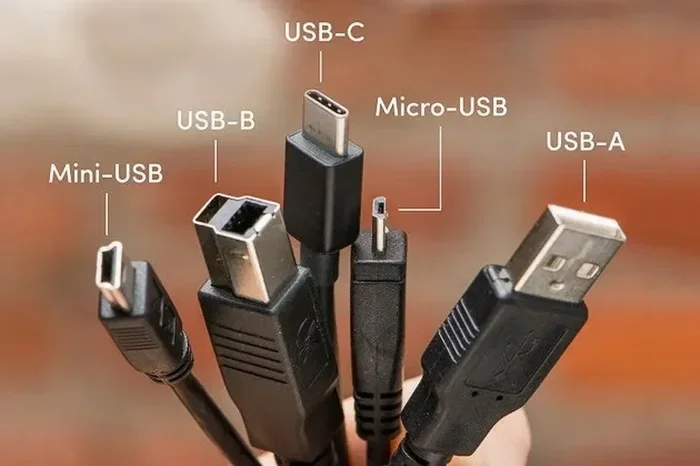
To truly understand USB C, it helps to see how it compares to other USB connector types. Here is a quick comparison.
| Feature | USB-A | USB-B | USB-C |
|---|---|---|---|
| Reversible | No | No | Yes |
| Max Data Speed | 5 Gbps (USB 3.0) | 5 Gbps (USB 3.0) | 40 Gbps (USB 4) |
| Max Power Delivery | 15W (USB BC 1.2) | 15W | 240W (USB PD 3.1) |
| Common Devices | Desktops, printers | Printers, scanners | Laptops, phones, tablets |
| Shape | Rectangular | Square-ish | Oval |
The USB C connector clearly leads in versatility and performance. Its reversible design, high power delivery, and fast data speeds make it the best choice for modern devices. As more devices adopt USB C, the ecosystem becomes more unified and simpler to use.
Conclusion
So, does USB C to USB work both ways? Absolutely. The USB Type-C connector is designed to be reversible, bidirectional, and universally compatible. Whether you are transferring data, charging devices, or connecting accessories, USB C handles it all in both directions.
The key is to use the right cable, adapter, and device combination for your needs. Not every USB C cable delivers the same speed or power. Not every USB C port supports the same features. But when you match the right components, the experience is seamless and fast.
Take a few minutes to check your device specs and invest in quality cables. A good USB C setup will make your daily tech life simpler, faster, and much more convenient. Once you make the switch, you will wonder how you ever managed with older connector types.
Frequently Asked Questions
Can I plug a USB C cable into a USB-A port?
Yes, you can use a USB C to USB-A cable to connect a USB C device to an older USB-A port. The cable has a USB C connector on one end and a USB-A connector on the other. Just remember that the data speed will be limited by the USB-A port’s capabilities.
Does USB C charging work both ways between devices?
Yes, USB C charging is bidirectional. This means a USB C port can both send and receive power. Your laptop can charge your phone, and your phone can charge your laptop, as long as both devices support USB Power Delivery and the cable can handle the required wattage.
Why does my USB C cable not work when I flip it?
If your USB C cable does not work in either orientation, the cable or port might be damaged. Try a different cable first. If the new cable works, your original cable was likely faulty. If neither cable works, the port on your device may need to be checked or repaired.
Are all USB C cables capable of fast data transfer?
No, not all USB C cables support fast data transfer. Some cables are designed only for basic charging and support USB 2.0 speeds. Look for cables labeled with USB 3.1, USB 3.2, or USB 4 to ensure you get fast data transfer speeds.
Can I use a USB C hub with my laptop?
Yes, a USB C hub expands your laptop’s connectivity by adding USB-A ports, HDMI outputs, SD card readers, and more. Make sure the hub supports the data speeds and power delivery your laptop’s USB C port offers for the best experience.
Is USB C the same as Thunderbolt?
No, USB C and Thunderbolt are not the same thing. USB C is a connector shape, while Thunderbolt is a technology protocol that uses the USB C connector. Thunderbolt 3 and 4 cables use USB C connectors but offer much higher speeds and more features than standard USB C cables.