Nvme M 2 Ssd Gen 3

The NVMe M.2 SSD Gen 3 is a fast, compact storage solution that uses the PCIe 3.0 interface and NVMe protocol to deliver blazing speeds. It’s perfect for upgrading laptops and desktops, offering read speeds up to 3,500 MB/s. This guide covers everything from speeds and compatibility to the best drives and common mistakes to avoid.
If you have been shopping for a new solid state drive, you have probably seen the term NVMe M.2 SSD Gen 3 thrown around a lot. It sounds technical, but the idea behind it is simple. These drives are small, super fast, and they can make your computer feel brand new. Whether you are building a new PC or upgrading an older laptop, understanding Gen 3 NVMe storage helps you make the right choice.
In this guide, we break down everything you need to know. We cover speeds, form factors, compatibility, and which drives are worth your money. By the end, you will feel confident picking the right NVMe M.2 SSD Gen 3 for your needs.
Key Takeaways
- Speed: NVMe M.2 SSD Gen 3 offers sequential read speeds up to 3,500 MB/s, far faster than SATA drives.
- Compact Form Factor: The M.2 stick shape fits easily into laptops and small desktops without extra cables.
- PCIe 3.0 x4 Interface: This is the standard connection that unlocks Gen 3 performance levels.
- Wide Compatibility: Most modern motherboards from 2016 onward support NVMe M.2 slots.
- Affordability: Prices have dropped significantly, making Gen 3 drives a great value for storage upgrades.
- TLC NAND Memory: Most Gen 3 drives use TLC flash for a balance of speed, endurance, and cost.
📑 Table of Contents
- What Is NVMe M.2 SSD Gen 3?
- How Fast Is NVMe M.2 SSD Gen 3?
- Compatibility: Does Your System Support NVMe M.2?
- Benefits of Upgrading to NVMe M.2 SSD Gen 3
- Common Mistakes When Buying NVMe M.2 SSDs
- Top NVMe M.2 SSD Gen 3 Drives to Consider
- Quick Tips for Getting the Most Out of Your NVMe M.2 SSD Gen 3
- NVMe M.2 SSD Gen 3 vs. Newer Generations: Is Gen 3 Still Worth It?
- Final Thoughts
What Is NVMe M.2 SSD Gen 3?
Let us start with the basics. NVMe stands for Non-Volatile Memory Express. It is a communication protocol designed specifically for flash storage. Unlike older AHCI protocols used with SATA drives, NVMe was built from the ground up for speed. It takes full advantage of the PCIe bus, which is the same high-speed connection your graphics card uses.
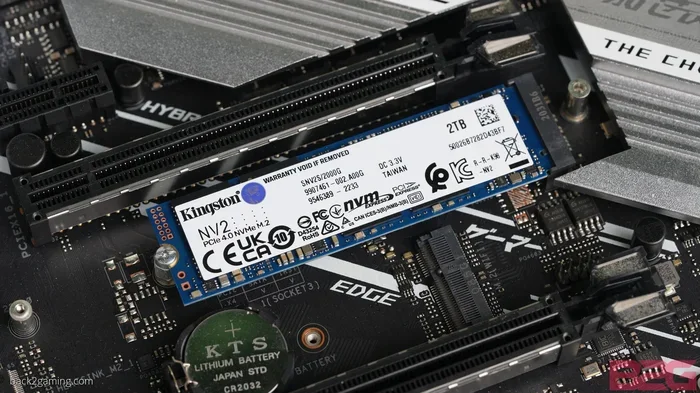
The M.2 part refers to the physical shape of the drive. M.2 SSDs look like small sticks of gum. They plug directly into a slot on your motherboard. No cables, no mounting brackets, no fuss. The Gen 3 part means these drives use the third generation of the PCIe interface, specifically PCIe 3.0 x4.
A typical M.2 NVMe SSD Gen 3 drive can deliver sequential read speeds around 3,500 MB/s and write speeds near 3,000 MB/s. Compare that to a standard SATA SSD, which tops out around 550 MB/s. The difference is massive. Your operating system, games, and applications will load much faster on an NVMe drive.
Why Does the Protocol Matter?
The NVMe protocol is important because it reduces the overhead that older storage protocols carry. SATA was designed for spinning hard drives from the 1980s. It was never meant for the speed of modern flash memory. NVMe fixes this by using a streamlined command set that requires fewer CPU cycles. The result is lower latency and higher throughput. This is why NVMe M.2 SSD Gen 3 drives feel so responsive in everyday use.
How Fast Is NVMe M.2 SSD Gen 3?
Speed is the main reason most people choose NVMe drives. Let us look at the numbers more closely.
Gen 3 NVMe SSDs use PCIe 3.0 with four lanes (x4). Each PCIe 3.0 lane can transfer about 985 MB/s in each direction. With four lanes, that gives a theoretical maximum of around 3,940 MB/s. In real world testing, most Gen 3 drives hit between 3,400 and 3,600 MB/s for reading. Write speeds are usually a bit lower, often in the 2,800 to 3,200 MB/s range.
Here is a quick comparison of common drive types:
- SATA SSD: Read speeds around 500 to 560 MB/s. These are still perfectly fine for basic tasks, but they feel slow next to NVMe.
- NVMe M.2 SSD Gen 3: Read speeds of 3,400 to 3,600 MB/s. This is roughly 6 to 7 times faster than SATA.
- NVMe M.2 SSD Gen 4: Read speeds of 5,000 to 7,000 MB/s. Gen 4 is newer and faster, but Gen 3 remains a solid choice for most users.
- NVMe M.2 SSD Gen 5: Read speeds of 7,000 to 14,000 MB/s. These are the newest and fastest, but also the most expensive.
For most people, a Gen 3 drive provides more than enough speed. You will notice the difference the moment you boot into your operating system or launch a heavy application. If you want a great example of a fast Gen 3 drive, check out the Corsair MP600 Core XT M.2 NVMe SSD, which delivers excellent performance at a reasonable price.
Compatibility: Does Your System Support NVMe M.2?
Before you buy an NVMe M.2 SSD Gen 3 drive, you need to check if your computer supports it. The good news is that most modern systems do, but there are a few things to verify.
Check Your Motherboard
Look at your motherboard specs and find the M.2 slot section. Most motherboards made after 2016 include at least one M.2 slot. However, not all M.2 slots support NVMe. Some M.2 slots only support SATA SSDs. Look for keywords like “PCIe,” “NVMe,” or “Gen 3” in the slot description. If you see “M.2 Key M,” that usually means NVMe support.
Laptop Compatibility
Many modern laptops come with an M.2 slot already built in. If your laptop was purchased after 2018, there is a good chance it supports NVMe. You can also check your laptop’s manual or the manufacturer’s website for storage upgrade options. Some ultrabooks and thin laptops only have one M.2 slot, so you may need to replace your existing drive rather than add a second one.
BIOS and Driver Considerations
Even if your hardware supports NVMe, you need to make sure your BIOS is set up correctly. Most modern BIOS versions enable NVMe by default, but older systems may need a BIOS update. You will also need the NVMe driver installed in your operating system. Windows 10 and Windows 11 include NVMe drivers built in, so you usually do not need to install anything manually. For older operating systems, you may need to download the driver from the SSD manufacturer’s website.
Benefits of Upgrading to NVMe M.2 SSD Gen 3
There are many reasons to upgrade to a solid state drive PCIe 3.0 TLC NVMe M.2. Here are the biggest benefits:
- Blazing Fast Boot Times: Your PC can go from powered off to desktop in under 10 seconds. No more waiting around for Windows to load.
- Faster Game Load Times: Open world games and large titles load significantly faster. You spend less time staring at loading screens and more time playing.
- Quick File Transfers: Moving large files, video projects, or backups happens in a fraction of the time compared to SATA drives.
- No Moving Parts: Because NVMe SSDs use flash memory, there are no spinning disks or moving parts. This means they are more durable and quieter.
- Low Power Consumption: NVMe drives use less power than traditional hard drives, which can slightly improve laptop battery life.
- Compact Size: The M.2 form factor takes up very little space inside your case, leaving more room for airflow and other components.
Real World Use Cases
Who benefits most from a Gen 3 NVMe drive? Content creators who work with large video files will see a huge improvement in export and render times. Gamers will love the faster load screens and reduced texture pop-in. Students and professionals who juggle many applications at once will appreciate the snappy multitasking. Even casual users who just want a faster computer will notice the difference immediately.
If you are looking at storage options, a 512GB NVMe M.2 SSD is a popular starting point that balances capacity and cost effectively.
Common Mistakes When Buying NVMe M.2 SSDs
Shopping for an NVMe drive seems simple, but there are a few pitfalls to watch out for.
Buying a Drive That Does Not Fit Your Slot
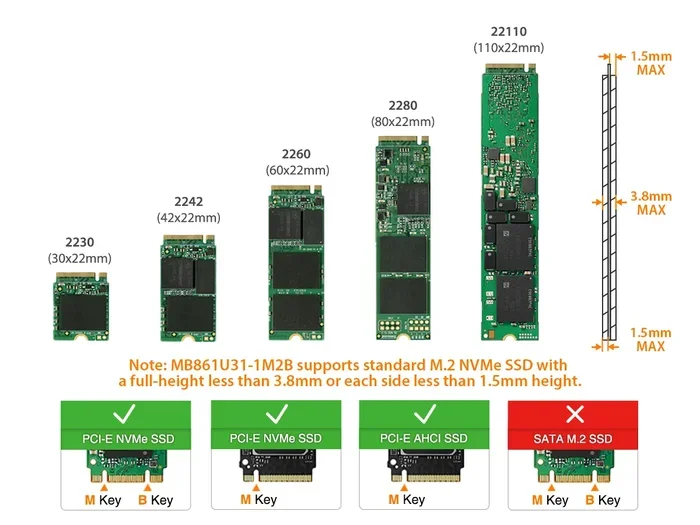
M.2 SSDs come in different lengths, usually 2280 (22mm wide, 80mm long), 2260, and 2242. Most desktop motherboards use the 2280 size. Laptops sometimes use shorter lengths. Always check your motherboard or laptop manual before purchasing. A drive that is too long simply will not fit.
Ignoring Heat Dissipation
NVMe drives can generate a lot of heat, especially during heavy workloads. Many Gen 3 drives come with a small heat spreader or heatsink built in. If your drive does not have one, and your M.2 slot is near a hot component like the CPU, you might experience thermal throttling. This means the drive slows down to protect itself from overheating. A simple M.2 heatsink can fix this problem. If you need an external solution, consider an NVMe M.2 enclosure for portable storage.
Confusing SATA M.2 with NVMe M.2
This is one of the most common mistakes. Not all M.2 drives are NVMe. Some M.2 drives use the SATA protocol and are no faster than a regular 2.5-inch SATA SSD. Always check the specs to confirm the drive uses PCIe and NVMe. Look for “PCIe Gen 3” or “NVMe” in the product name or description.
Overlooking Endurance Ratings
Every NVMe SSD has a TBW (Terabytes Written) rating. This tells you how much data you can write to the drive before it is expected to fail. For a typical user, a 500GB or 1TB Gen 3 NVMe drive will last many years. Heavy writers, such as video editors or anyone constantly moving large files, should look for higher TBW ratings or consider drives with DRAM cache for better sustained performance.
Top NVMe M.2 SSD Gen 3 Drives to Consider
The market is full of great Gen 3 NVMe options. Here are some popular choices across different price points:
- Budget Pick: The Kingston 1TB M.2 NVMe SSD offers reliable performance and solid endurance at an affordable price point for everyday users.
- Mid-Range Pick: The Samsung PM9A1 and similar PCIe 3.0 TLC NVMe M.2 SSDs provide excellent read and write speeds with good thermal management for most workloads.
- Premium Pick: The Crucial T705 PCIe Gen 5 NVMe M.2 SSD represents the cutting edge of speed, though Gen 3 drives still deliver outstanding value for most users.
When choosing a drive, think about your needs. If you just need fast storage for your operating system and a few games, a 500GB or 1TB drive is plenty. If you store large media libraries or work with heavy files, consider 2TB or even a 2TB M.2 NVMe SSD for future proofing.
Quick Tips for Getting the Most Out of Your NVMe M.2 SSD Gen 3
Once you have your new drive installed, a few simple steps will help you get the best performance:
- Enable XMP in BIOS: While this mainly affects RAM, keeping your system settings optimized helps overall performance.
- Keep Your Drive Cool: Make sure the M.2 slot has proper airflow. If your motherboard has a heatsink, use it.
- Update Your Firmware: SSD manufacturers regularly release firmware updates that improve speed, stability, and endurance. Check the manufacturer’s website periodically.
- Leave 10 to 20 Percent Free Space: SSDs perform best when they are not completely full. Free space helps with wear leveling and garbage collection.
- Use the Manufacturer’s SSD Toolbox: Most NVMe SSD brands offer free software that lets you monitor health, update firmware, and optimize settings.
NVMe M.2 SSD Gen 3 vs. Newer Generations: Is Gen 3 Still Worth It?
With Gen 4 and Gen 5 drives available, you might wonder if Gen 3 is still relevant. The answer is a clear yes. Here is why:
Gen 3 NVMe SSDs are significantly cheaper than Gen 4 or Gen 5 drives. For most everyday tasks, including web browsing, office work, gaming, and content creation, Gen 3 speeds are more than sufficient. The bottleneck in most systems is not the drive. It is the CPU, RAM, or even the internet connection. A Gen 3 NVMe drive will not be the limiting factor in your system’s performance.
Gen 4 and Gen 5 drives shine in specialized workloads like 4K video editing, large database management, and extreme gaming with massive open world titles. But for the average user, the price difference is not worth the extra speed. A 1TB NVMe M.2 SSD from the Gen 3 generation will serve you well for years to come.
Also consider that Gen 4 and Gen 5 require newer motherboards with the corresponding M.2 slots. If you have an older system, a Gen 3 drive is your best and most affordable upgrade path. Even on newer systems, Gen 3 drives offer excellent value and reliability.
The bottom line is that NVMe M.2 SSD Gen 3 technology strikes a perfect balance between speed, price, and availability. It is the sweet spot for most storage upgrades in 2024 and beyond.
Final Thoughts
Upgrading to an NVMe M.2 SSD Gen 3 is one of the best things you can do for your computer. The speed improvement is dramatic, the installation is simple, and the prices are very reasonable. Whether you are building a new PC or giving an old laptop new life, a Gen 3 NVMe drive makes a huge difference.
Just remember to check your compatibility before buying, pay attention to the form factor and slot type, and keep your drive cool and updated. With these simple steps, you will enjoy faster boot times, quicker application launches, and a much more responsive computing experience.
Do not let your old slow storage hold you back any longer. Upgrade to an NVMe M.2 SSD Gen 3 today and feel the difference every time you turn on your computer.
Frequently Asked Questions
What is the difference between NVMe M.2 SSD Gen 3 and Gen 4?
Gen 3 uses PCIe 3.0 and maxes out around 3,500 MB/s read speeds. Gen 4 uses PCIe 4.0 and can reach speeds of 5,000 to 7,000 MB/s. Gen 4 is faster, but Gen 3 is still plenty fast for most users and costs significantly less.
Can I use an NVMe M.2 SSD Gen 3 in any computer?
Not all computers support NVMe. You need a motherboard with an M.2 slot that supports PCIe NVMe. Most computers made after 2016 have this, but you should always check your motherboard or laptop specs before buying.
Do I need a heatsink for my NVMe M.2 SSD Gen 3?
It depends on your system. If your M.2 slot is near the CPU or has poor airflow, a heatsink can prevent thermal throttling. Many Gen 3 drives come with a built-in heatsink, so check the product specs before purchasing.
Is NVMe M.2 SSD Gen 3 good for gaming?
Absolutely. Gen 3 NVMe drives load games much faster than SATA SSDs or hard drives. You will notice shorter load screens and faster level transitions, especially in open world games with large asset files.
How long does an NVMe M.2 SSD Gen 3 last?
Most Gen 3 NVMe SSDs use TLC NAND flash and have high endurance ratings. For a typical user, a 1TB drive can last 5 to 10 years or more. The TBW rating on the drive gives you a good estimate of its lifespan based on your usage.
Can I clone my old drive to a new NVMe M.2 SSD Gen 3?
Yes, you can clone your existing drive to a new NVMe SSD using free software like Macrium Reflect or Clonezilla. Just make sure your new drive is the same size or larger than your old one, and always back up your data before cloning.