Are Usb C and Thunderbolt the Same
USB-C and Thunderbolt are not the same thing. While USB-C is a connector shape, Thunderbolt is a technology that uses the USB-C port to deliver much faster speeds and more features. Understanding this difference helps you pick the right cables and devices for your setup.
Have you ever looked at your laptop or phone and wondered about the small oval-shaped port? You see it everywhere now. It is on chargers, laptops, phones, and tablets. But what exactly is it? And is it the same as Thunderbolt? Many people confuse USB-C with Thunderbolt. They assume they are the same thing. They are not. This guide breaks down the differences in plain language so you never have to guess again.
Knowing the difference between these two connection types matters more than most people think. It affects your data transfer speed, your display output options, and even how you charge your devices. Whether you are buying a new cable, picking out a docking station, or just trying to figure out why your external drive is slow, this article has you covered. Let us dive in and clear up the confusion once and for all.
Key Takeaways
- USB-C is a connector shape: It describes the physical plug and port design, not the speed or capabilities inside.
- Thunderbolt is a technology: It uses the USB-C connector but adds much faster data transfer and display support.
- Not all USB-C ports are Thunderbolt: Many devices have USB-C ports that only support slower USB speeds.
- Thunderbolt 3 and 4 offer up to 40Gbps: This is far faster than standard USB-C transfer rates.
- Check your device specs: Always verify whether your port supports Thunderbolt before buying cables or accessories.
- You can plug a Thunderbolt cable into a USB-C port: But it will only work at USB-C speeds, not Thunderbolt speeds.
- Cable quality matters: Cheap cables can limit your speeds no matter which port you use.
📑 Table of Contents
What Is USB-C?
USB-C is a type of connector shape. That is it. It does not describe speed or power. It simply tells you what the plug looks like. The connector is small, oval-shaped, and reversible. This means you can plug it in either way. No more flipping the cable three times to get it right.
The USB-C Connector Shape
The USB-C connector replaced the older USB-A and USB-B designs. Those older plugs were big and bulky. They had a specific top and bottom. USB-C changed the game. The connector is tiny and symmetrical. You will find it on almost every modern device. Phones, tablets, laptops, and even some desktop computers now use it.
The USB Type C standard was developed by the USB Implementers Forum. This group includes big names like Apple, Microsoft, and Intel. They wanted a single universal connector that could work across devices. That goal has mostly been achieved. Today, USB-C is the most common connector on new gadgets.
What Can You Do with a USB-C Port?
A USB-C port can do several things. It can charge your device. It can transfer files. It can connect to peripheral devices like mice, keyboards, and external hard drives. But the speeds and power depend on the USB version the port supports.
Here is a quick look at what different USB versions offer:
- USB 3.2 Gen 1: Up to 5Gbps transfer speed
- USB 3.2 Gen 2: Up to 10Gbps transfer speed
- USB 4: Up to 40Gbps transfer speed
So a USB-C port might be fast or slow. It all depends on the protocol inside. This is where people get confused. The shape of the port does not tell you what it can do.
Many people use USB-C cables for everyday tasks. Charging a phone or backing up photos to an external drive works fine with standard USB-C. But if you need high-speed transfers or video output, you need something more. That is where Thunderbolt comes in.
What Is Thunderbolt?
Thunderbolt is a connection technology developed by Intel in partnership with Apple. It uses the USB-C connector shape. But it does much more than standard USB-C. Think of Thunderbolt as a supercharged version of USB-C. It combines data transfer, video output, and charging into one single cable.
Thunderbolt 3 and Thunderbolt 4
Thunderbolt 3 was a big deal when it came out. It offered up to 40Gbps of bandwidth. That is four times faster than USB 3.2 Gen 2. It also supported two 4K displays or one 8K display. Charging power went up to 100 watts. This made it possible to run a laptop with just one cable.
Thunderbolt 4 came next. It kept the 40Gbps speed but added stricter requirements. Every Thunderbolt 4 cable must support certain minimum features. These include wake-from-sleep support, security features, and guaranteed 32Gbps for data. If you see the Thunderbolt 4 logo, you know you are getting a reliable connection.
Both Thunderbolt 3 and Thunderbolt 4 use the same USB-C connector. This is part of why people mix them up. The plug looks identical. But what happens inside is very different.
How Thunderbolt Differs from Standard USB-C
The main difference is the transfer protocol. Thunderbolt uses a special protocol that combines PCI Express and DisplayPort. This allows it to handle data and video at the same time without slowing down. Standard USB-C uses the USB protocol. It works fine for most tasks but has limits.
Here are the key differences:
- Speed: Thunderbolt is much faster than standard USB-C.
- Display support: Thunderbolt can drive multiple high-resolution monitors.
- Daisy chaining: You can connect up to six Thunderbolt devices in a chain.
- Power delivery: Both support charging, but Thunderbolt guarantees higher wattage.
- Compatibility: Thunderbolt cables work with USB-C devices, but not the other way around at full speed.
These differences matter a lot for certain users. If you work with large video files or connect multiple monitors, Thunderbolt is a game-changer. For basic charging and file transfers, standard USB-C is perfectly fine.
Are USB-C and Thunderbolt the Same?
The short answer is no. The long answer is that they share the same connector shape but are very different in capability. When you ask are USB-C and Thunderbolt the same, you are really asking about the difference between a physical shape and a technology standard.
Key Differences at a Glance
Let us look at the main differences side by side. This makes it easy to see why they are not the same:
- Connector Shape: Both use the same oval USB-C plug.
- Data Speed: USB-C maxes out at 10Gbps (or 20Gbps with USB 3.2 Gen 2×2). Thunderbolt reaches 40Gbps.
- Video Output: Standard USB-C may or may not support video. Thunderbolt always supports it.
- Daisy Chaining: Only Thunderbolt supports connecting multiple devices in a chain.
- Cost: Thunderbolt cables and devices cost more due to the extra technology inside.
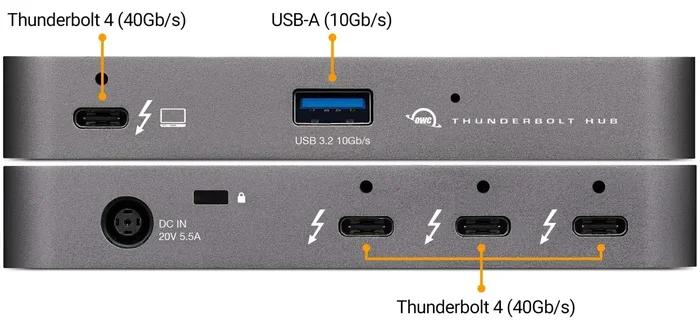
- Identification: Thunderbolt ports have a lightning bolt icon. USB-C ports usually do not.
Can You Use a Thunderbolt Cable in a USB-C Port?
Yes, you can. A Thunderbolt cable will physically fit into a USB-C port. But it will only work at USB-C speeds. You will not get the full Thunderbolt benefits. The reverse is also true. A standard USB-C cable can plug into a Thunderbolt port. But again, it will not unlock the faster speeds.
This is an important point for anyone shopping for cables. If you buy a Thunderbolt cable, make sure your device has a Thunderbolt port to take full advantage of it. Otherwise, you are paying extra for a cable that works the same as a cheaper one.
For example, if you are using an M 2 NVMe to USB-C SSD enclosure, a standard USB-C connection will work fine for most needs. But if you want the fastest possible speeds for large file transfers, a Thunderbolt-connected enclosure would be better.
Why the Confusion Between USB-C and Thunderbolt Exists
The confusion is completely understandable. Both use the same connector. Both carry power and data. Both appear on the same devices. When Apple introduced Thunderbolt 3, they used the USB-C shape. This made it hard to tell them apart just by looking.
Many laptops now have USB-C ports that support Thunderbolt. But not all of them do. Some manufacturers label their ports as USB-C even when they only support slower USB speeds. This marketing blurring adds to the mix-up. Consumers buy a cable or device expecting Thunderbolt speeds, only to find out they are getting much slower USB-C performance.
The best way to avoid this confusion is to look for the lightning bolt symbol. If you see it next to the port, you have Thunderbolt. If you do not, it is likely just USB-C. You can also check your device manual or the manufacturer’s website for full specifications.
How to Choose the Right Connection for Your Needs
Choosing between USB-C and Thunderbolt depends on what you need to do. Most people do not need Thunderbolt. But certain tasks really benefit from it. Let us break this down by use case.
When USB-C Is Enough
Standard USB-C works great for everyday tasks. Here are some situations where USB-C is all you need:
- Charging your phone or tablet
- Transferring photos and documents
- Connecting a mouse or keyboard
- Using a basic external hard drive
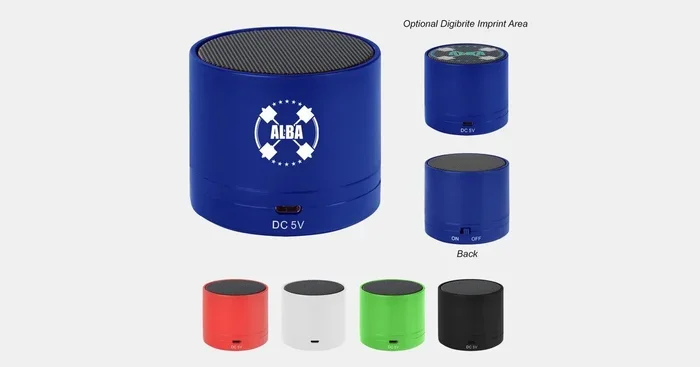
- Connecting to a USB Type C speaker system
For these tasks, you do not need the extra speed or features of Thunderbolt. A simple USB-C cable will get the job done just fine. You can also find great accessories like best USB Type C headphones that work perfectly with standard USB-C ports.
When Thunderbolt Is Worth It
Thunderbolt shines in professional and heavy-duty scenarios. Consider Thunderbolt if you:
- Edit 4K or 8K video files
- Connect multiple high-resolution monitors
- Work with large datasets or creative files
- Need to daisy chain several devices
- Use external GPUs or high-speed storage arrays
For creators and professionals, the extra speed and display support of Thunderbolt can save hours of waiting time. The bandwidth it provides makes working with large files much smoother.
Expert Insight: A good rule of thumb is to match your connection to your workload. If you are browsing, streaming, and doing light file work, USB-C is perfect. If you are doing professional audio or video work, invest in Thunderbolt.
Quick Tips for Using USB-C and Thunderbolt Cables
Here are some practical tips to get the best experience:
- Always check the port icon. The lightning bolt means Thunderbolt.
- Buy certified cables. Cheap, uncertified cables can cause speed drops or even damage your devices.
- Match your cable to your needs. A Thunderbolt cable is backward compatible but a USB-C cable will not unlock Thunderbolt speeds.
- Consider your power delivery needs. Thunderbolt 3 and 4 support up to 100W of charging power.
- Check your cross-platform compatibility. Thunderbolt works on Windows, Mac, and Linux, but some features may vary.
Common Mistakes People Make
Here are mistakes that many people make when dealing with USB-C and Thunderbolt:
- Assuming all USB-C ports are Thunderbolt. They are not. Always look for the lightning bolt.
- Using cheap cables for high-speed transfers. This leads to frustration and slow performance.
- Buying Thunderbolt accessories when USB-C would work. Save your money if you do not need the extra speed.
- Ignoring cable length. Longer cables can reduce speeds. Keep Thunderbolt cables under 2 meters for best performance.
- Not checking device specs before buying. Always verify what your device supports before purchasing cables or adapters.
Expert Insights on USB-C vs Thunderbolt
The world of connectivity is evolving fast. USB-C has become the universal connector for modern devices. Thunderbolt has pushed the boundaries of what a single cable can do. Together, they represent the best of what modern connection standards can offer.
Looking ahead, USB4 is bringing Thunderbolt-like capabilities to the USB-C world. This means the gap between the two is slowly closing. More devices are supporting faster speeds over the same USB-C connector. For now, though, understanding the difference still matters. It helps you make smarter buying decisions and avoid frustration.
If you are shopping for storage solutions, for example, you might consider an NVMe SSD to USB adapter for fast external storage. Or you might explore M2 NVMe SSD in USB enclosures that take advantage of the high-speed capabilities of Thunderbolt or USB 4 connections. The right choice depends on your specific needs and budget.
The bottom line is simple. USB-C is the connector shape you see on almost everything today. Thunderbolt is the technology that makes that shape incredibly powerful. Knowing the difference puts you ahead of most consumers. It helps you get the right gear, the right cables, and the right performance for your setup.
Conclusion
So, are USB-C and Thunderbolt the same? They share the same connector, but they are fundamentally different in capability. USB-C is a physical shape and a basic standard for charging and data. Thunderbolt is a powerful technology that delivers blazing speeds, multiple display support, and daisy chaining through that same USB-C shape.
For most everyday users, standard USB-C is perfectly fine. You do not need Thunderbolt for charging your phone, backing up files, or connecting basic accessories. But for professionals and power users, Thunderbolt opens doors that USB-C simply cannot.
The best approach is to know your needs. Check your device specs. Look for the lightning bolt icon. Choose your cables and accessories accordingly. With this knowledge, you will never buy the wrong connection again. The world of USB-C and Thunderbolt does not have to be confusing. Now you have the clarity to navigate it with confidence.
Frequently Asked Questions
Can I use a USB-C cable for Thunderbolt devices?
Yes, but you will not get Thunderbolt speeds. A USB-C cable works in a Thunderbolt port, but it limits the connection to standard USB speeds. For full Thunderbolt performance, you need a Thunderbolt-certified cable.
How can I tell if my port is USB-C or Thunderbolt?
Look for the lightning bolt icon next to the port. If you see it, your port supports Thunderbolt. If there is no lightning bolt, it is likely just a standard USB-C port. You can also check your device manual for the full specifications.
Is Thunderbolt faster than USB-C?
Yes, Thunderbolt is significantly faster. Thunderbolt 3 and 4 offer up to 40Gbps of data transfer speed. Standard USB-C ports typically max out at 10Gbps or 20Gbps depending on the USB version they support.
Do I need Thunderbolt for external storage?
It depends on your needs. For casual file transfers, standard USB-C is perfectly fine. If you work with large video files or need the fastest possible speeds, Thunderbolt makes a big difference. An M 2 NVMe to USB-C SSD enclosure can also boost your storage speeds over standard connections.
Are Thunderbolt cables more expensive than USB-C cables?
Yes, Thunderbolt cables generally cost more. This is because they contain more advanced technology inside. The extra cost reflects the higher speeds, better build quality, and stricter certification requirements that Thunderbolt cables must meet.
Will USB-C become obsolete with Thunderbolt?
No, USB-C is not going away. Thunderbolt uses the USB-C connector shape, so they work together. USB-C will continue to be the standard connector for most devices, while Thunderbolt serves the high-performance needs of professionals and power users.