Is Apple Thunderbolt Port a Usb C
Yes, an Apple Thunderbolt port uses the USB-C connector shape, but it does much more than a standard USB-C port. Thunderbolt 3 and Thunderbolt 4 combine USB-C functionality with faster speeds, external display support, and docking capabilities. If you own a modern MacBook or Mac, understanding this difference matters for buying cables, drives, and accessories like the best USB Type C headphones or external storage.
Key Takeaways
- Thunderbolt ports use USB-C connectors: They share the same physical shape and plug design.
- Thunderbolt is faster: It offers up to 40Gbps bandwidth, while standard USB-C tops out at 10Gbps.
- Not all USB-C ports are Thunderbolt: Many devices have USB-C ports that lack Thunderbolt features.
- Apple adopted Thunderbolt starting with the 2016 MacBook Pro: Newer Macs with Apple Silicon use Thunderbolt 3 or Thunderbolt 4.
- Thunderbolt supports daisy-chaining: You can connect multiple devices through a single port.
- Compatibility is one-way: Thunderbolt cables work with USB-C devices, but USB-C cables may not support Thunderbolt speeds.
📑 Table of Contents
- Is Apple Thunderbolt Port a Usb C?
- What Is a Thunderbolt Port?
- How Thunderbolt and USB-C Work Together
- Which Apple Devices Have Thunderbolt Ports?
- Thunderbolt vs Standard USB-C: Key Differences
- Can You Use USB-C Devices with Thunderbolt Ports?
- What Can You Do with a Thunderbolt Port?
- Common Mistakes People Make with Thunderbolt Ports
- Expert Tips for Getting the Most from Your Thunderbolt Port
- Conclusion
Is Apple Thunderbolt Port a Usb C?
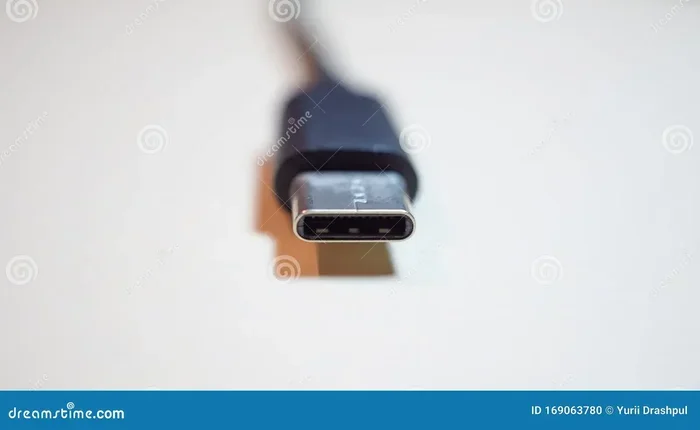
The short answer is yes, with a big but. Apple Thunderbolt ports use the same USB-C connector shape. You can plug a standard USB-C cable into a Thunderbolt port and it will work. But that is where the similarity ends. Thunderbolt technology builds on top of USB-C to deliver much faster speeds and more features.
Many people confuse the two because they look identical. The port on your MacBook Pro or MacBook Air has a small lightning bolt symbol next to it. That little symbol tells you it is a Thunderbolt port, not just a regular USB-C port. If there is no lightning bolt, it might still be USB-C, but it will not have Thunderbolt capabilities.
This distinction matters a lot when you are buying cables, hubs, or external devices. A regular USB-C cable will not unlock the full speed of a Thunderbolt port. Similarly, a Thunderbolt cable will work fine with non-Thunderbolt USB-C devices, but you will not get the extra speed benefits. Understanding this difference helps you make smarter buying decisions.
In this guide, we break down exactly what Thunderbolt is, how it compares to standard USB-C, and which Apple devices use it. We also cover practical tips for getting the most out of your Thunderbolt port.
What Is a Thunderbolt Port?
A Thunderbolt port is a hardware interface developed by Intel in partnership with Apple. It combines several types of connections into one small port. The latest versions, Thunderbolt 3 and Thunderbolt 4, use the USB-C connector form factor.
Thunderbolt was first introduced by Apple in 2011 with the Thunderbolt 1 port, which used a different shape entirely. It was not until 2015 with Thunderbolt 2 that Apple started using a smaller connector. Then in 2016, Apple switched to the USB-C shape with Thunderbolt 3, and that is what we use today.
Key Features of Thunderbolt
- High data transfer speeds: Thunderbolt 3 offers 40Gbps. Thunderbolt 4 also offers 40Gbps but with stricter certification requirements.
- Display support: You can connect one or two external 4K displays, or a single 8K display.
- Power delivery: Thunderbolt ports can charge your laptop up to 100W through the same cable.
- Daisy-chaining: You can connect up to six devices in a chain from a single Thunderbolt port.
- Network networking: Thunderbolt supports 10Gb Ethernet connections for ultra-fast file sharing.
How Thunderbolt and USB-C Work Together
Thunderbolt 3 and Thunderbolt 4 are built on the USB-C protocol. This means they use the same physical connector and the same underlying electrical specifications for basic USB data transfer. Think of USB-C as the foundation, and Thunderbolt as the upgraded version built on top of it.
When you plug a standard USB-C device into a Thunderbolt port, it communicates using USB protocol. The port automatically detects what you have connected and adjusts accordingly. This is why a regular USB-C flash drive works perfectly in a Thunderbolt port.
But when you use a Thunderbolt-certified cable with a Thunderbolt device, the connection switches to Thunderbolt mode. This unlocks the full 40Gbps speed, display output capabilities, and other advanced features. The negotiation happens automatically behind the scenes.
This dual-mode design is what makes Thunderbolt so versatile. You get the universal compatibility of USB-C with the premium performance of Thunderbolt when you need it.
Which Apple Devices Have Thunderbolt Ports?
Apple has been transitioning its lineup to Thunderbolt over the years. Here is a breakdown of which devices feature Thunderbolt ports.
MacBook Pro Models
All MacBook Pro models from 2016 onward use Thunderbolt 3 or Thunderbolt 4 ports. This includes the 2016 through 2020 Intel-based models and all Apple Silicon models starting with the M1 MacBook Pro in 2020. The current MacBook Pro lineup features Thunderbolt 4 ports.
MacBook Air Models
The MacBook Air switched to Thunderbolt with the M1 model in 2020. Before that, the MacBook Air used standard USB-C 3.1 ports without Thunderbolt capability. So if you have a pre-2020 MacBook Air, your USB-C ports are not Thunderbolt.
Mac Mini and Mac Studio
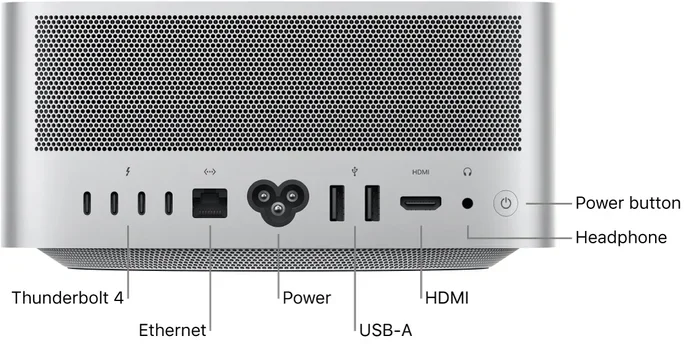
The Mac Mini from 2018 onward and the Mac Studio both feature Thunderbolt ports. These desktop machines benefit greatly from Thunderbolt’s ability to connect multiple external drives and displays through a single cable.
Mac Pro
The Mac Pro (2019 and later) includes Thunderbolt 3 ports as well. These are designed for professional workflows that demand high-speed connections to external hardware.
Thunderbolt vs Standard USB-C: Key Differences
While Thunderbolt and USB-C share the same connector, they are not the same thing. Here is a detailed comparison to help you understand the differences.
Speed Comparison
Standard USB-C ports typically support USB 3.1 or USB 3.2, which maxes out at 10Gbps. Thunderbolt 3 and Thunderbolt 4 both offer 40Gbps. That is four times faster than standard USB-C.
For practical use, this means you can transfer a 4K video file in seconds with Thunderbolt, while it might take longer on a standard USB-C connection. If you work with large video files or massive photo libraries, this speed difference is significant.
Display Support
Standard USB-C supports one external display at 4K resolution. Thunderbolt 3 and 4 support up to two 4K displays or one 8K display. For creative professionals who need multiple monitors, Thunderbolt is essential.
Power Delivery
Both Thunderbolt and USB-C support USB Power Delivery up to 100W. So charging capability is the same. However, Thunderbolt ports are more consistent in delivering full power across all supported devices.
Daisy-Chaining
This is a feature unique to Thunderbolt. You can connect a Thunderbolt external drive to a Thunderbolt display, and then connect that display to your Mac, all using one Thunderbolt port. Standard USB-C does not support this chaining capability.
| Feature | Standard USB-C | Thunderbolt 3 | Thunderbolt 4 |
|---|---|---|---|
| Max Data Speed | 10Gbps | 40Gbps | 40Gbps |
| External Displays | 1 x 4K | 2 x 4K or 1 x 8K | 2 x 4K or 1 x 8K |
| Power Delivery | Up to 100W | Up to 100W | Up to 100W |
| Daisy-Chaining | No | Yes | Yes |
| Security (Thunderbolt 4 only) | N/A | N/A | Yes |
| Minimum Bandwidth Guarantee | Varies | No | Yes (32Gbps total) |
Can You Use USB-C Devices with Thunderbolt Ports?
Absolutely. One of the best things about Thunderbolt is its backward compatibility. You can plug in any USB-C device and it will work just fine. This includes USB-C flash drives, M.2 NVMe to USB C SSD enclosures, charging cables, and even external NVMe SSDs like the SanDisk Extreme Portable.
The only limitation is speed. If you plug a standard USB-C external drive into a Thunderbolt port, it will only transfer data at USB-C speeds, not Thunderbolt speeds. To get the full 40Gbps benefit, both the cable and the device must be Thunderbolt certified.
Similarly, you can use a Thunderbolt cable with standard USB-C devices. The cable will work, but the device will communicate at USB-C speeds. Thunderbolt cables are backward compatible, which makes them very versatile.
Quick Tips for Cable Selection
- Look for the Thunderbolt logo: The lightning bolt symbol on the cable confirms Thunderbolt certification.
- Check the cable length: Thunderbolt cables longer than 2 meters may have reduced speeds.
- Use certified cables: Cheap uncertified cables may not support Thunderbolt speeds even if they look the same.
- Match your needs: For basic charging and data transfer, a standard USB-C cable is fine. For external drives and displays, go Thunderbolt.
What Can You Do with a Thunderbolt Port?
Thunderbolt ports open up a world of connectivity options for Mac users. Here are the most common and useful things you can do with a Thunderbolt port on your Apple device.
Connect External Storage
External SSDs and hard drives are the most popular Thunderbolt use case. A Thunderbolt-connected external drive delivers blazing fast transfer speeds, making it perfect for video editors and photographers. You can connect a portable SanDisk Extreme Portable SSD or a desktop RAID array through Thunderbolt for maximum performance.
Connect External Displays
Thunderbolt supports video output through DisplayPort protocol. You can connect external monitors directly to your MacBook or Mac Mini. This is especially useful for creating a dual-monitor workstation or connecting a large 4K display for creative work.
Use Docking Stations
Thunderbolt docking stations are incredibly powerful. A single Thunderbolt cable connects your laptop to a dock that provides multiple USB-A ports, HDMI output, Ethernet, and charging passthrough. This turns your MacBook into a full desktop setup with one plug.
Connect Audio Equipment
Professional audio interfaces often use Thunderbolt for low-latency, high-bandwidth audio streaming. Music producers and podcasters rely on Thunderbolt connections for studio-quality audio. You can also use USB-C audio devices like USB Type C headphones through a Thunderbolt port without any issues.
Network Connections
Thunderbolt supports 10Gb Ethernet, which is ideal for high-speed local networking. This is useful for professionals who transfer large files between machines on the same network.
Common Mistakes People Make with Thunderbolt Ports
Even experienced Mac users sometimes make mistakes when using Thunderbolt ports. Here are the most common ones to avoid.
Assuming All USB-C Cables Are Thunderbolt Cables
This is the biggest mistake. A USB-C cable looks identical to a Thunderbolt cable, but they are not the same. A standard USB-C cable will not deliver Thunderbolt speeds. Always check for the Thunderbolt logo on the cable.
Buying Non-Certified Accessories
Thunderbolt certification ensures that a device meets strict performance and compatibility standards. Non-certified Thunderbolt accessories may work but could cause connection issues or fail to reach full speeds.
Ignoring the Daisy-Chain Limit
Thunderbolt supports up to six devices in a chain. But if you exceed this limit or use incompatible devices, the chain can break. Plan your daisy-chain setup carefully and test each connection.
Using the Wrong Cable Length
Thunderbolt cables longer than 2 meters (about 6.5 feet) may not sustain full 40Gbps speeds. For best performance, keep your Thunderbolt cables under 2 meters.
Expert Tips for Getting the Most from Your Thunderbolt Port
Here are some practical tips from the field to help you maximize your Thunderbolt experience.
- Invest in Thunderbolt-certified cables: They cost a bit more but guarantee full performance and reliability.
- Use a Thunderbolt docking station: It simplifies your workspace and gives you multiple connection options from one port.
- Keep firmware updated: Apple regularly releases updates that improve Thunderbolt compatibility and performance.
- Check your Mac model: Not all Macs have Thunderbolt. Confirm your specific model before buying Thunderbolt accessories.
- Match your peripherals: For the best experience, pair Thunderbolt drives, Thunderbolt displays, and Thunderbolt cables together.
- Consider your workflow: If you only need basic charging and file transfers, standard USB-C is sufficient. Save Thunderbolt for demanding tasks.
Conclusion
So, is an Apple Thunderbolt port a USB-C? Yes, it is. They share the same physical connector and are compatible with each other. But Thunderbolt goes far beyond standard USB-C in speed, display support, and versatility.
If you own a modern Mac with Thunderbolt ports, you have access to a powerful connectivity hub. Whether you are connecting external drives, monitors, or docking stations, Thunderbolt delivers the performance that professionals need.
The key takeaway is to understand the difference and buy accordingly. For everyday tasks, standard USB-C works great. For demanding workflows, Thunderbolt is the way to go. Choose the right cable, the right accessories, and your Thunderbolt port will serve you well for years to come.
Frequently Asked Questions
Is Thunderbolt the Same as USB-C?
No, Thunderbolt is not the same as USB-C, but they share the same connector shape. Thunderbolt uses the USB-C form factor but adds faster speeds, display support, and daisy-chaining capabilities. Think of Thunderbolt as an enhanced version of USB-C.
Can I Use a Regular USB-C Cable with a Thunderbolt Port?
Yes, you can. A regular USB-C cable will work in a Thunderbolt port for basic charging and data transfer. However, it will not support Thunderbolt speeds or features like daisy-chaining and multi-display output.
How Do I Know if My Mac Has Thunderbolt Ports?
Look for the lightning bolt symbol next to the port on your Mac. If you see the lightning bolt icon, it is a Thunderbolt port. If there is no symbol, it is likely a standard USB-C port without Thunderbolt capability.
What Is the Difference Between Thunderbolt 3 and Thunderbolt 4?
Both Thunderbolt 3 and Thunderbolt 4 offer 40Gbps speeds. Thunderbolt 4 adds stricter certification requirements, better security features, and a guaranteed minimum bandwidth of 32Gbps. Thunderbolt 4 also supports wake-from-sleep functionality for connected devices.
Do Thunderbolt Cables Work with Non-Apple Devices?
Yes, Thunderbolt cables work with any device that has a Thunderbolt port, regardless of the manufacturer. Intel designed Thunderbolt as an open standard, so Windows PCs and other devices with Thunderbolt ports can use the same cables and accessories.
Can I Charge My MacBook Through a Thunderbolt Port?
Yes, Thunderbolt ports support USB Power Delivery up to 100W. You can charge your MacBook through any Thunderbolt port using a compatible USB-C charging cable. The port handles both data transfer and power delivery simultaneously.